
Live
The Live tab displays all activated and live cameras on the XV Plus Gateway. You can view live video, change the camera grid layout, and more. Refer to the information below:
SCREEN
View Live Video
-
Log in to VirtualKeypad.com and enter your User Code.
-
In the menu, select Video.
-
Go to the XV Plus Gateway tab.
-
Select the camera you want to view live video from.
Change the Camera Grid Layout
-
Log in to VirtualKeypad.com and enter your User Code.
-
In the menu, select Video.
-
Go to the XV Plus Gateway tab.
-
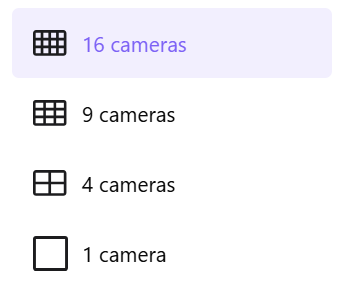
Select the Grid

-
16 cameras
-
9 cameras
-
4 cameras
-
1 camera
-
Create a Custom Camera Layout
-
Log in to VirtualKeypad.com and enter your User Code.
-
In the menu, select Video.
-
Go to the XV Plus Gateway tab.
-
Under the Live tab, select the All Cameras drop-down menu.
-
Select Customize View.
-
In the search bar, select which cameras you'd like to display on your dashboard, then arrange them in the order you prefer.
-
Select Apply to save your changes, or select Save as a new group to create and save a new camera group.
SCREEN
Choose a Playback Date
-
Log in to VirtualKeypad.com and enter your User Code.
-
In the menu, select Video.
-
Go to the XV Plus Gateway tab.
-
Under the Live tab, ensure the Multi-Camera Management

-
Select the Playback Date

-
In the pop-up, select the
SCREEN